Are Photo Sharing Links Safe? Control Who Sees Your Photos
Privacy · 23 November 2026 · 8 min read
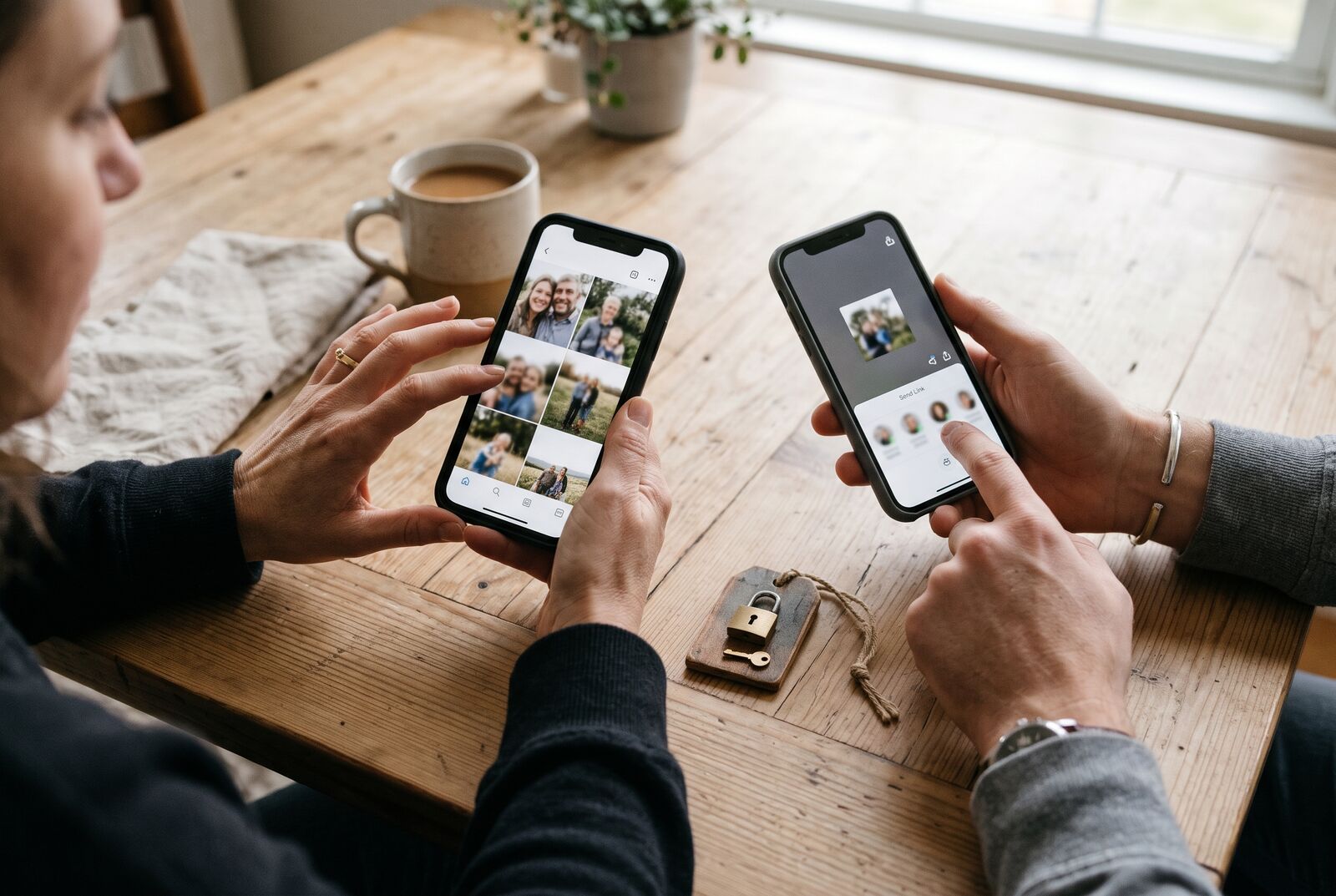
You send a photo album link to a relative, who forwards it to someone else. Can that person see the pictures? Often, yes. If the link works for anyone who has it, forwarding can give someone access without another invitation.
Photo sharing link safety starts with knowing who can open a link, what they can do with the photos, and how to turn access off. If a link has already reached the wrong people, disable it in the sharing settings, then check for other active links and separately invited members.
Photo sharing link safety: the short answer
A photo link is not automatically private just because it is long or difficult to guess. Its access settings determine what happens when it reaches someone new.
- Anyone-with-the-link access: Anyone who receives the link may be able to open it, including someone you never intended to invite.
- Restricted access: The service limits access to approved people or accounts. A forwarded link alone should not let an unauthorized person in, although they may be able to request access.
Before sending a link, check the audience, whether people must sign in, and whether they can edit, add, or download photos. Also check whether the link expires. Available controls and their names vary by service and app version.
Pay attention to what the link points to. A link to an entire album can expose more than the one picture you had in mind. Depending on the service, photos added later may also become visible to people who have access.
What happens when someone forwards a photo link?
Imagine a parent shares an album of 60 school-event photos with three relatives. One relative forwards the link to a fourth person.
If the album is open to anyone with the link, that fourth person may be able to view it immediately. The parent may not get a request to approve them, and there may be no way to tell precisely where the link went next.
If access is restricted to the three relatives’ authorized accounts, the fourth person should be unable to open the album unless they are also granted access. Check the actual settings rather than assuming that sending an invitation made the link private: an album can have invited members and an active public link at the same time.
An expiration date can limit how long a link works, but it does not prevent forwarding during that period or undo copies already made.
Understand the controls before you share
View-only and download permissions
View-only usually means a recipient cannot make changes. It does not necessarily mean they cannot download a photo, and it does not restrict an open link to a particular person.
Some services let you disable a download button. That can make casual copying less convenient, but it cannot reliably prevent screenshots, screen recordings, or someone photographing a screen. Share sensitive material only with people you trust, even when downloads are disabled.
Check editing permissions separately. If you are collecting photos from guests, you may want contributors to add their own pictures. If relatives only need to browse, viewer access is the simpler choice. Look at whether an editor can also remove content or invite others; permissions differ between services.
Expiration, passwords, and revocation
An expiring link is useful when access is needed for a short period, such as the week after an event. Choose the shortest window that gives recipients enough time.
Some services offer password-protected links. A password adds a barrier, especially if you send it through a different channel from the link. A recipient can forward the password too, however, so it is not the same as limiting access to named accounts.
Revoking or disabling a link is intended to block subsequent access through it, but the exact behavior depends on the service. It cannot erase images already loaded, downloaded, or captured. It may not remove people you invited separately, either. Check for other active links and album members before assuming all access has ended.
How to share a photo link more safely
- Select the right photos. Review the whole album, not just its cover image. Remove pictures that do not belong and check captions for details you would rather keep private. Inspect visible clues such as street signs, school names, and house numbers.
- Check location and other metadata. Look in the photo’s information panel for location data. If it is sensitive, use your device’s location-removal or sharing options where available, then inspect the exported copy before sending it. A service may expose different metadata in a displayed preview and a downloaded original, so check the files recipients can obtain.
- Open the sharing settings. Look for a Share button on the photo or album, then inspect the audience or link access options. For sensitive photos, choose access limited to authorized accounts where the service supports it, and check that any anyone-with-the-link option is off.
- Set permissions. Choose viewer access unless people need to contribute or edit. Check whether downloads are allowed and set an expiry if the service offers one. Do not assume a viewer setting automatically disables downloads.
- Test the link. Open it in a private browser window while signed out. If it opens, someone who receives the link may be able to view it without signing in. If it asks only for a shared password, anyone with both the link and password may be able to open it. A sign-in prompt alone does not prove access is limited to your chosen recipients; for restricted sharing, also test with an unauthorized account if you can.
- Send and review. Send the link directly to intended recipients instead of posting it publicly. When they no longer need access, disable the link or remove their permissions, and check for other ways the album remains shared.
Built-in options from Apple Photos and Google Photos may be enough, particularly when you already use them with the people you are sharing with. Check the specific method: Apple Photos’ Shared Albums and iCloud Links are different sharing options, while in Google Photos you should check link sharing separately from the people listed on an album. Menus and controls change, so consult Apple Support or Google Help for current guidance.
When to use private sharing instead
For photos of children, sensitive family moments, or an album meant for a small group over a long period, choose sharing that requires recipients to sign in with accounts you have authorized. Check that any anyone-with-the-link option is off. Review the member list, remove people who no longer need access, and check whether members can invite others.
A public link can make sense for less sensitive photos when easy access matters more than controlling every recipient. For example, you might share a few pictures of a community event with attendees, provided the photos are suitable for wider circulation and the people pictured would reasonably expect that sharing. Set an expiry if it is available and the photos are only needed temporarily.
For a one-off exchange with someone you trust, sending a few selected files directly may be simpler than creating an album. The trade-off is that the recipient has copies they can keep or forward.
Fayloo is another option: it supports private sharing with members or email addresses, as well as public links with optional expiry and download controls. Public-link viewers can open the link in a browser without an account; the trade-off for private sharing is that recipients need a free account. As with any service, those controls cannot prevent someone who can view an image from keeping a copy by other means.
What to do if a photo link was shared too widely
- Disable or revoke the link. Open the service’s sharing settings and turn off the affected link. Test the old URL in a new signed-out private browser window and refresh it to check whether it still opens.
- Review the rest of the access list. Look for other links to the same photos and for members who were invited separately. Disable unneeded links and remove permissions that should no longer apply.
- Share again only if needed. If some people still need the photos, create a new share with a narrower audience. Check the permissions before sending it.
- Ask about saved copies. Ask unintended recipients to delete files they saved or forwarded. Disabling access cannot guarantee that copies have disappeared.
- Document a serious exposure. Note which photos were accessible, when you discovered the exposure, and when you disabled access. If the content is particularly sensitive, consider contacting the service’s support team or using its reporting tools where appropriate.
Act promptly, but distinguish between stopping future access and recovering information that has already been viewed or saved. A revoked link can help with the first; it cannot guarantee the second.
Frequently asked questions
Can someone view my photos if a link is forwarded?
They may be able to if the link works for anyone who has it. If access is restricted to authorized accounts, someone who is not authorized should be unable to open the photos unless access is granted. Check the sharing settings and test them.
Can I stop people from downloading or screenshotting shared photos?
Some services let you turn off downloads, removing an easy way to save the original. That cannot reliably prevent screenshots, screen recordings, or a photo of the screen.
Does disabling a sharing link delete photos people already saved?
No. Disabling a link should stop future access through it, but it does not delete files or screenshots already on someone else’s device. Separately invited members or other active links may also retain access until you change those settings.
Are expiring photo links private?
Not necessarily. Expiration limits how long a link works; it does not determine who can use it before it expires. An anyone-with-the-link URL may still be forwarded and opened during that period.
How can I check whether my photo link is public?
Inspect the link’s audience or access setting, then open it in a private browser window while signed out. If it is supposed to be restricted, test with an unauthorized account as well. Exact labels and testing options depend on the service.
Choose the audience before you create the link
Good photo sharing link safety starts with the audience. For sensitive photos, restrict access to authorized accounts. Use an open link only when forwarding is acceptable, and review access when recipients no longer need it.