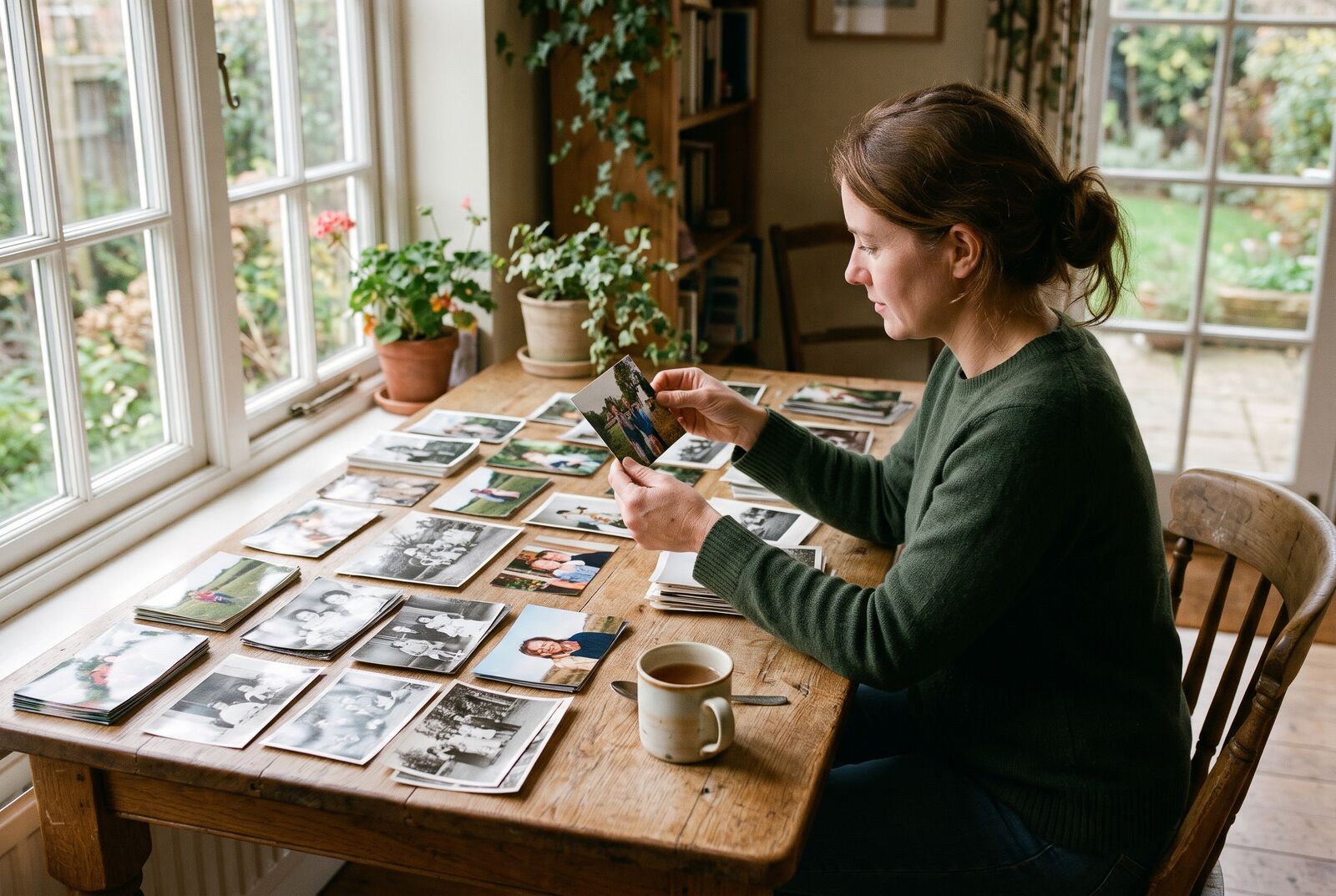
How to Organize Years of Photos on External Hard Drives
Memories · 24 November 2026 · 9 min read
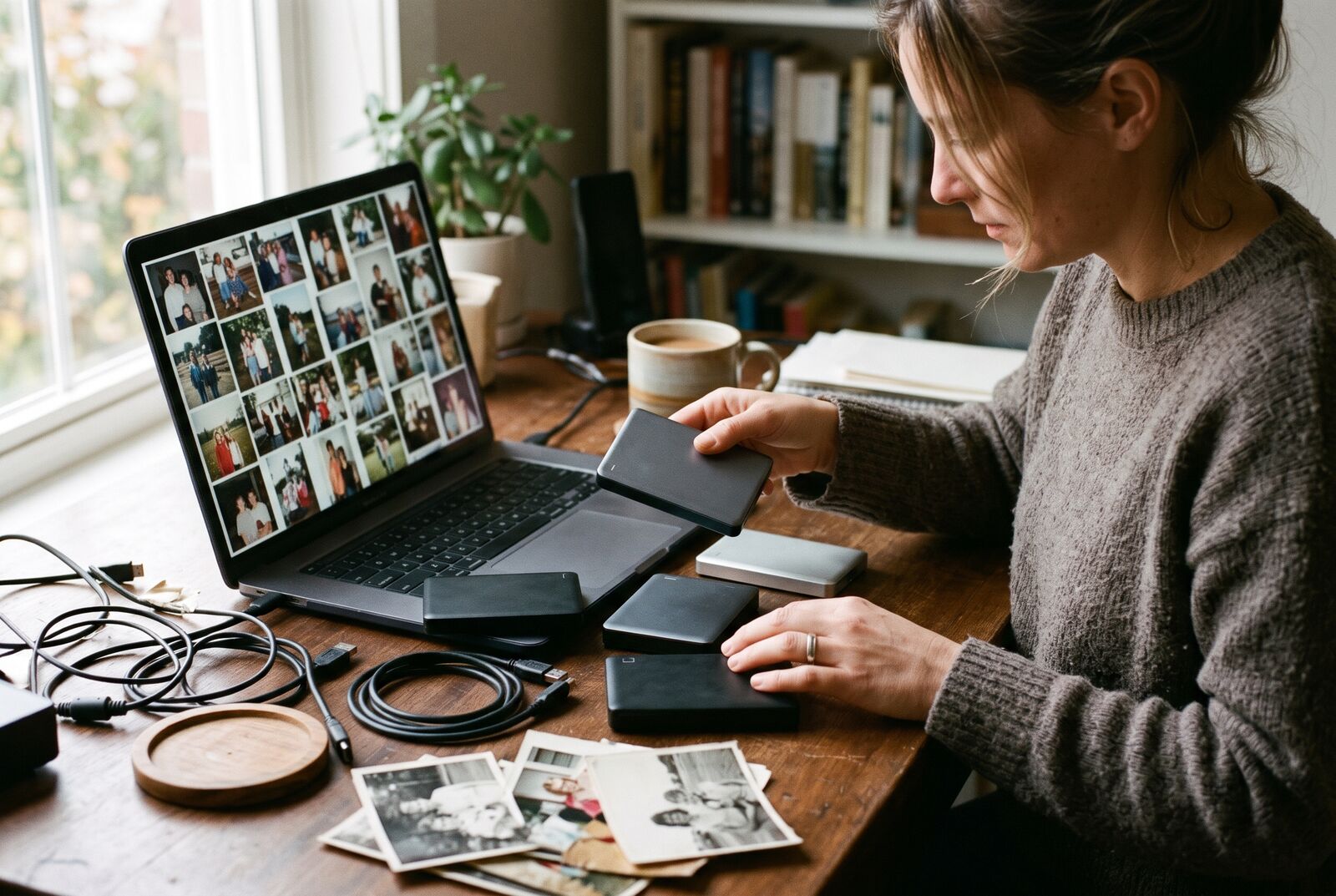
If you want to organize photos on an external drive, start by making a separate copy of every readable file. Once the copy is checked, you can combine folders, review duplicates, and decide where the finished archive should live.
You do not need to sort every photo in one sitting. Work through one drive at a time, protect the originals, and leave uncertain decisions for later.
Protect readable photos before you start
Gather your drives, cables, power supplies, and a computer. Label each drive so you can track its contents; tape marked “Drive 1” is enough. Check that you have separate storage with enough space for the files you intend to copy.
- Connect one drive and copy its photo and video folders to the separate storage. Leave the source folders intact.
- Use a copy utility with a file-verification option, enable it, and review its report for skipped files or read errors. Verification compares the copies; it cannot repair corruption already present in the source.
- Compare folder sizes and file counts as an additional check, then open a sample of photos and videos from different folders.
- Record which folders copied successfully and investigate unresolved errors before relying on the new copy.
If a drive clicks repeatedly, disconnects, or is not recognized, avoid repeated attempts to access it. Check the cable and power connection, but do not format the drive. If its contents are irreplaceable and you have no other copy, consider professional data recovery before trying repair tools.
Some drives contain a computer backup or an application-managed photo library rather than ordinary folders. Use the relevant backup or photo application to restore or export the originals. Do not rearrange files inside its managed library, and preserve the full backup or library until you have checked the export.
Take inventory and plan storage space
List each drive, the approximate space its files use, and recognizable contents such as phone backups, scans, camera folders, or cloud exports. Note which sources you have copied and checked. Include useful details from folder names so you can trace material back to its source later.
For example, a family has three drives containing 600 GB, 400 GB, and 300 GB of files. They should plan for up to 1.3 TB in a working archive before deduplication, plus space for separate backups. The final collection may be smaller, but they cannot know how much smaller until they compare the files.
Keep the source folders as protected copies while building the working archive on separate storage. If you do not have room, add storage or process verified batches carefully: never reduce a file to one copy while rearranging it. Allow extra room for files awaiting duplicate review.
How to organize photos from external drives
Start with years and events
Work on one source or year at a time. A structure someone else can navigate is more useful than a detailed system you never finish. Try a Photos folder containing year and event folders:
- Photos / 2018 / 2018-08 Family trip
- Photos / 2018 / 2018-12 Holidays
- Photos / Date unknown
Use capture dates when they are available and credible. A file’s modified date may reflect a transfer or edit, and a folder name can be wrong. Put uncertain files in “Date unknown” instead of guessing.
A scan’s capture date usually records when it was digitized, not when the original picture was taken. A folder named “Approx. 1970s — family prints” preserves that uncertainty. If you change dates in an app, test a few files and check whether the change is saved in the file, a separate sidecar, or only the app’s catalog.
Keep useful structures
You do not need to rebuild a relative’s carefully labeled scans or a photographer’s organized project folders. Keep them if they already make sense. Preserve notes and sidecar files that came with exports or editing applications; they may contain useful metadata or editing instructions.
Folders can travel between storage systems. Photo-management apps may add visual browsing and search, but check how their albums, edits, and metadata can be exported before relying on them as your only organizational system.
Find duplicates without losing valuable versions
Scan the working archive, not every connected backup. Copies on backup drives are intentional.
Find exact copies first
Choose a duplicate finder that can compare whole files byte for byte or by checksum. Some tools describe photos as duplicates based on image content while overlooking differences in metadata. Whole-file comparison helps identify identical files even when their names differ.
Review the proposed results. Move suspected duplicates to a temporary review folder, or use a reversible removal option if the tool offers one. Keep that folder outside later duplicate scans until the cleaned archive and its backup have been checked.
Do not delete by filename alone. Two cameras can produce files with the same name, and the same photo can be renamed during a transfer.
Review similar images separately
Near-duplicates can include burst shots, crops, edits, lower-resolution exports, and files with different metadata. Compare their contents, dimensions, format, and edits before deciding what to keep.
If two files are identical, one copy in the working archive is enough. If one is a cropped JPEG and the other is the original, both may be useful. A RAW file and an edited export can also serve different purposes. Record each batch you review so you can pick up where you left off.
Check old formats and preserve the originals
Open a sample from each source, including scans, photos, videos, and edited exports. A missing thumbnail does not necessarily mean a file is damaged; the computer may lack a compatible viewer. Check the extension and look for a trusted viewer that supports it, or try the application that created the file.
When easier viewing or sharing would help, make an access copy. For example, you might create a JPEG from a TIFF scan or an MP4 video using widely supported video and audio codecs. An MP4 extension alone does not guarantee playback compatibility.
Keep the original and relevant sidecar files: conversion can change quality or metadata. Test representative conversions for image quality, dates, and, for videos, picture and sound before converting a large batch.
Choose where the archive will live
Your working archive is the copy you browse and update. It also needs independent backups. Start with tools and storage you already have, then choose additions based on how you want to access the collection and how much maintenance you can take on.
External drives: simple and direct
External drives suit readers who want local access and are willing to connect a drive for updates. Keep copies on separate physical drives, including one at another location. A separate folder or partition on the same drive is not an independent backup.
The trade-off is that manual updates can be forgotten. Drives kept together also share risks such as theft or fire.
Cloud storage: convenient off-site access
Check the tools and subscriptions you already use, such as OneDrive or iCloud, before adding a service. File-oriented storage can be useful for retaining a folder structure; photo-library services may make visual browsing easier. Check current storage limits and prices, original-file handling, export options, and how albums and metadata transfer.
Read how syncing and deletion work. A deletion may sync to other devices, so keep an independent backup. If you need to recover older versions, check whether the service provides them and under what conditions.
Fayloo is another option for merging an archive. It can import folders and Google Takeout or ZIP archives, skip files already uploaded, and keep the originals. Compare your expected archive size with its available plans.
NAS: shared local access with more upkeep
A network-attached storage device, or NAS, can give a household a central library on its own network. It suits readers who want shared local access and are comfortable maintaining hardware and software.
Account for setup, drive replacement, updates, hardware, and electricity. If you enable remote access, maintain its security too. RAID can help keep data available after certain drive failures, but it is not a backup against accidental deletion, theft, fire, or every hardware failure.
Choose a NAS when local control and shared access justify the upkeep. Choose cloud storage when managed off-site access matters more. You can use both, with independent backups, if the cost and maintenance make sense for you.
Make a backup routine you can maintain
The 3-2-1 rule is a useful target: keep three copies of the archive, on two types of storage, with one copy off-site. For example, keep a working archive on a computer, a backup on an external drive that you disconnect after updating it, and an off-site cloud backup. Check the cloud service’s recovery and version options.
As a starting routine, update backups after each import, check backup reports monthly, and test a restore every few months. Restore a few files to another location and open them, including a video. Investigate read errors or unreliable connections promptly, and migrate to working storage while good copies remain accessible.
Before erasing an old drive, confirm that the working archive and an independent backup both contain the files you plan to remove. Resolve verification errors and test a sample restore. Keep the old drive longer if you have the space and want an additional recovery option.
You can organize photos on an external drive in manageable sessions. Label the first drive, make a verified copy, and keep a short record as you work. The archive will become easier to browse and protect with each completed batch.
Frequently asked questions
Should I delete photos from an old external drive after copying them?
Wait until the working archive and an independent backup contain the files, verification has finished without unresolved errors, and you have tested a sample restore. A second folder on the same drive does not count as an independent backup.
What is the easiest way to organize photos from several external drives?
Copy and verify each readable source, list its contents, then sort a working archive one source or year at a time. Use year and event folders where helpful, and set uncertain dates aside for later.
How can I find duplicate photos without losing edits or originals?
Use whole-file comparison for exact copies, and move candidates to a temporary review folder before permanent deletion. Review similar images separately and retain distinct edits, RAW files, or exports you need.
Is a NAS safer than cloud storage for old photos?
Each has different risks. A NAS offers local control but requires maintenance; cloud storage provides managed off-site access but depends on the provider and your account. Neither should be the sole copy.
What should I do if an old hard drive will not open?
Check its cable and power supply. If it clicks repeatedly, disconnects, or remains unrecognized, avoid repeated attempts and do not format it. Consider professional recovery if important files have no other copy.