How to Find Photos of One Person Across Years of Pictures
Organizing · 21 November 2026 · 7 min read
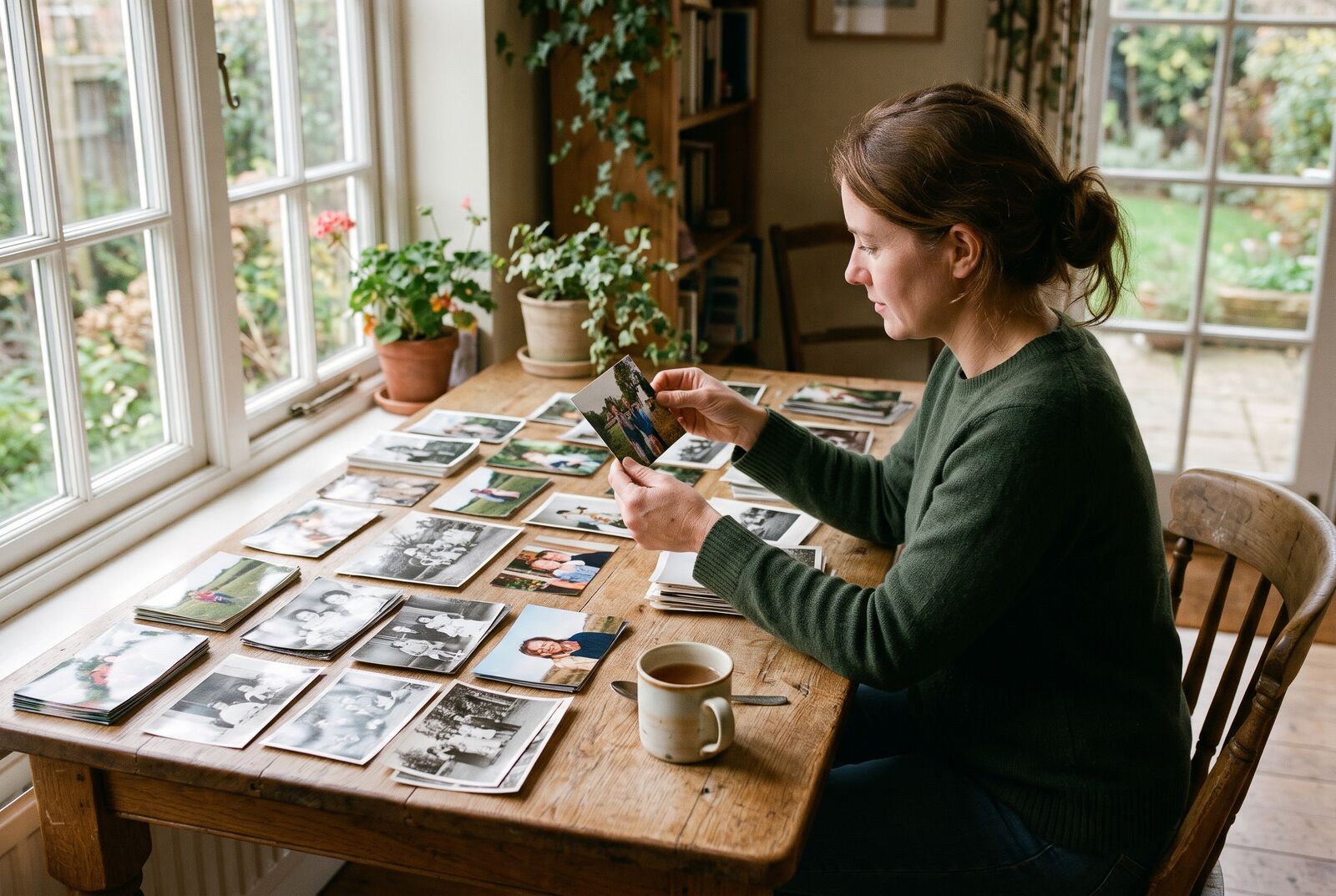
The quickest way to find photos of one person scattered across years is to open the face-grouping section of the photo app you already use. If a group exists for that person, name it, review the suggested additions, and merge any duplicate groups. If face grouping is unavailable or switched off, you build the collection by hand — browsing albums, years or events and selecting photos yourself.
Decide first: a one-time search or an album that stays current
A one-time collection — photos for a printed book, a memorial, a birthday slideshow — is worth doing manually. Browse the library once, pull what you need, and the job is done.
A living album that grows as new photos arrive needs automation. Without face grouping, every new photo means another manual decision, and at any real scale that stops being practical.
The manual approach: albums and selection
When manual works well
Manual selection suits a small or well-organised library, a project with a fixed end point, or a situation where nothing can be processed outside your own device or network. It also works as a supplement to face grouping — for adding photos the automated scan missed.
How to do it
Create an album named for the person. Browse your library by year or event, select the relevant photos, and add them. Keep a note of which years or folders you have already reviewed. In most apps, adding a photo to an album links it rather than copying it, so it uses no extra storage.
If you want an approach independent of any particular app, copy the photos into a named folder on your computer. The trade-off is a separate collection you have to maintain alongside your original files.
How face recognition works
Grouping similar faces
Photo-library face-grouping tools work by grouping faces that appear to belong to the same person, then asking you to confirm and name the group. Services use a confidence threshold: faces that clearly match go into the group; uncertain ones stay out rather than risk a wrong placement.
On-device vs. server-side processing
On-device processing keeps face analysis on your hardware. Apple Photos analyzes faces on-device on iPhone and Mac. If you use iCloud Photos, your photos also sync through iCloud — on-device analysis refers to the analysis step, not to where every photo is stored. Analysis takes time; see support.apple.com for what to expect in your version.
Server-side processing runs on the provider's infrastructure. Where background processing is supported and uploads have completed successfully, analysis can continue after you close the page — but completion depends on the service and queue conditions. Allow time before expecting results. The privacy question changes: whose servers, what retention, and what happens to the data when you turn it off.
Services that offer face grouping
- Apple Photos — On-device analysis, free with iPhone or Mac. Best for a library already in Apple's ecosystem. See support.apple.com for setup steps.
- Google Photos — Server-side. Availability can vary by region and account type; check current status at support.google.com. When available, naming a face group lets you search for that person by name and review suggested additions.
- Fayloo — Server-side, running on Fayloo's own infrastructure rather than a third-party AI service. Turn it on once and the scan runs on Fayloo's servers even for large libraries; new uploads are checked automatically. Face comparison happens only within your own library, never against other members' photos. The feature stays off until you give explicit consent; turning it off deletes all face data. Face grouping is part of the Pro plan. The Android app is available; iPhone users can upload from any browser.
Privacy questions worth asking before you switch it on
Face processing can raise biometric data considerations. GDPR in Europe treats biometric data used to uniquely identify a person as a special category with stricter rules; other regions have different frameworks. The European Commission publishes guidance at commission.europa.eu. Before enabling face grouping in any service, check four things in its current privacy policy:
- Does face analysis happen on your device or on external servers?
- Are your faces compared only within your own library, or matched across the broader user base?
- Is face data used for advertising or to train AI models?
- What happens to the data when you turn off face grouping or close your account?
When your library is very large
Start with the photos already in one place and check initial face grouping results before importing everything. Then bring in other sources one batch at a time — from cloud drives, local folders or other services. Verify each batch before moving on, and keep your originals until every import is confirmed. Use a duplicate finder if your service has one, but preserve different edits and genuinely different shots of the same moment.
How to find photos of one person — step by step
- Open the face-grouping or People section of your photo app. If you do not see one, check the app's settings — some services require an explicit opt-in. Menu names vary by version.
- Find all groups that appear to show your person. Someone photographed across many years may appear in more than one group.
- Name the person in the largest matching group. Where your app supports it, merge the other matching groups into it.
- Review suggested additions and confirm or decline each one.
- Browse likely dates, locations and event albums for photos the scan missed — profiles, obscured faces, low-resolution scans. Note that in many apps a face group is separate from a regular album, and manually adding photos directly to a face group may not be supported. If that is the case, create a named album and add the face group's photos along with any you find by hand into it.
- For photos on other devices or in other accounts, import them into the same library. Once uploaded, they become available for analysis where grouping is enabled — though as with any batch, some faces may still be missed.
Treat the results as a strong starting point, not a finished archive. A review pass to catch what automated grouping cannot see is always worth doing.
Troubleshooting
No face section appears in the app
Face grouping may need to be enabled in settings, may not be available in your region, or may require a specific plan. Check the app's current help documentation for your version.
The same person appears in two or more separate groups
This is common when a face changes significantly over time. Merge the groups where your app supports it. If merging is not available, add photos from each group to a single manually curated album.
Siblings or twins are mixed together
Use the correction control in your app — often labeled not this person or remove from group, though names differ by version. The photos stay in your library and can be added to the correct person's collection.
Some photos are missing from a face group
Face grouping cannot match backs of heads, group shots where the person is small or blurred, old prints with low resolution, or photos still on another device or account. Search by date and location, browse event albums, and add missing photos by hand.
Frequently asked questions
Can I find photos of someone without face recognition?
Yes. Create a dedicated album, browse by year and event, and add photos by hand. The honest limit is that the album will not update itself — every new photo that arrives is a manual step.
Does face grouping work across photos from different cameras and phones?
Yes, as long as all the photos are in the same library. Services group by face appearance, not by device or file origin. That is why consolidating from all your sources into one place matters.
Why are some photos missing from a face group?
Automated grouping misses faces it cannot read clearly: profiles, distant crowd shots, blurry images, old scans and photos where the face is turned or partly covered. No service guarantees complete results. These photos need to be added manually.
What if I want all processing to stay on my device?
Apple Photos on iPhone and Mac analyzes faces on-device. If you use iCloud Photos, your photos also sync through iCloud — on-device analysis refers to the analysis step, not to where photos are stored overall. Analysis takes time; see support.apple.com for current details and what to expect in your version.
My photos are spread across multiple services — where do I start?
Choose one service as your main library and test face grouping on what is already there before importing everything. Bring in other sources one batch at a time, verify each one, and keep your originals until every import is confirmed complete.
The goal of being able to find photos of one person across years of pictures is achievable with the right preparation: use the face groups already in your app as the starting point, fill gaps manually, and bring scattered sources into one library so more of your history is available for analysis.