What to Do When Google Photos Storage Is Full
Storage · 18 November 2026 · 7 min read
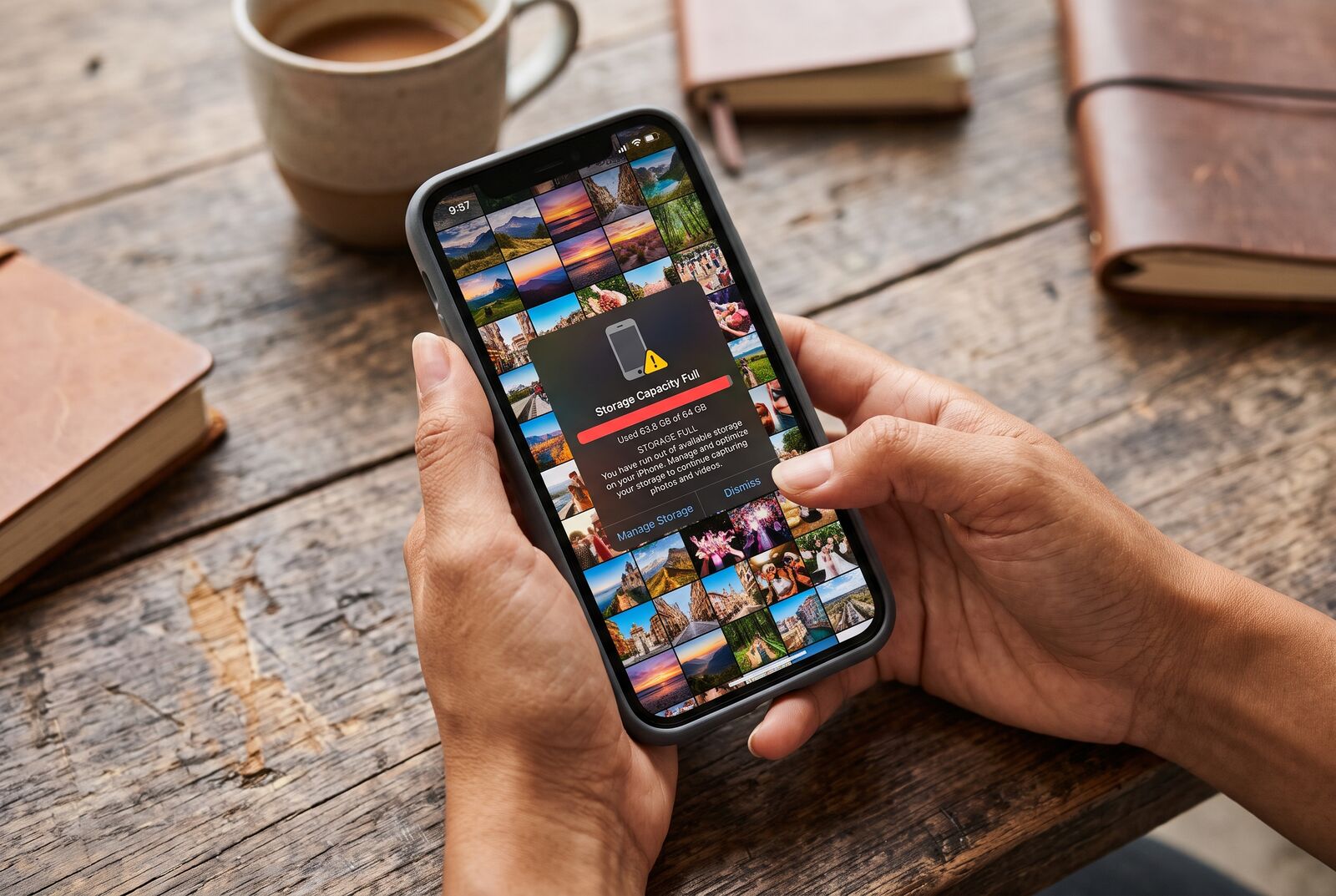
When Google Photos storage is full, photo and video backups pause immediately. Any photos taken afterward stay only on your device until the problem is resolved. It is worth fixing promptly: Google's policy states that content in accounts remaining over quota for two years can be removed, with advance notices sent first. A full quota can also stop Gmail from receiving messages and block Drive uploads.
Your existing library stays in place. The options below let you choose between cleaning up, paying for more space, or moving elsewhere.
First: find out what is actually using your space
Google Photos shares one storage pool with Gmail and Google Drive. Open your Google Account storage page to see how usage splits across the three services — email attachments or Drive files may be eating more than your photos are.
One important distinction: Google Photos' "Free up space" feature removes local copies of photos already backed up to Google's servers. That frees space on your phone, not in your Google Account quota. If your Google Account quota is full, clearing phone storage will not help.
Inside Google Photos, look for a storage management option — usually reached through your profile picture or settings, with a label like "Manage storage," though names vary by version. It surfaces large files and categories of disposable content such as blurry photos and screenshots.
Four ways to handle Google Photos storage full
1. Delete what you don't need (free)
Before deleting anything, understand the risk: removing backed-up photos through Google Photos removes them from the cloud library, and depending on your device settings, deletions can also affect local copies. If a photo exists only in Google Photos, deleting it means losing it. Confirm that anything you care about exists somewhere else first.
- Start with the largest items in the storage manager — long videos recover the most space.
- Review blurry photos and screenshots.
- Check Gmail for large attachments. In Gmail on the web, the search filter has:attachment larger:10m finds big emails quickly. Delete those messages and empty Gmail Trash, which counts toward your shared quota.
- Empty Drive Trash, which also counts toward quota.
- Note that items moved to Google Photos Trash do not count toward your Google Account storage quota, so emptying Google Photos Trash will not recover quota space. Gmail and Drive Trash are different — those do count.
- After large deletions, storage totals can take up to 48–72 hours to update. Check backup status in Google Photos rather than waiting for the quota number to change first.
2. Convert existing Original quality uploads (free)
Google Photos on the web offers a way to compress your existing Original quality uploads to Storage Saver. In Settings, look for something like "Recover storage" — the label can differ by version. Eligible files are compressed and the trade-off is permanent: the original quality versions are removed from Google's servers and cannot be restored from Google.
Export your originals with Google Takeout first if quality matters. Compression or resizing may affect detail and editing flexibility, depending on the source file. Future Storage Saver uploads still count toward your Google Account quota; this option does not give you unlimited free storage. Switching the backup quality setting for future uploads is a separate action from converting files already on Google's servers.
3. Upgrade your Google storage
Google One is Google's paid storage plan, shared across Photos, Drive, and Gmail. To upgrade: sign in to the Google Account where storage is full, open your account's storage management page, and look for an option to get more storage or manage your plan — labels vary by interface. Review the current plan sizes and pricing, choose enough capacity for expected growth, complete the purchase, then open Google Photos and confirm that backup has resumed on the correct account.
The practical strengths are worth naming: nothing in your library moves; search, sharing, and device sync keep working; and a family plan can extend the storage to other members. The trade-offs are equally real: it is a recurring cost, your library will keep growing, and you stay within Google's quota model. Plans and prices change, so check the current options directly with Google.
4. Move your photos to a different service
People move for practical reasons: a different cost model, features that suit their workflow, or more control over an archive. Be honest about what you would give up: Google Photos has strong visual search, smooth Android backup, and wide device support.
- iCloud Photos integrates tightly with iPhones and Macs. Changes and deletions sync across all devices, so removing something in one place removes it everywhere. Check current plans at Apple.
- Amazon Photos is worth checking if you are already a Prime subscriber, though photo and video storage work differently. Verify current terms before assuming what is included.
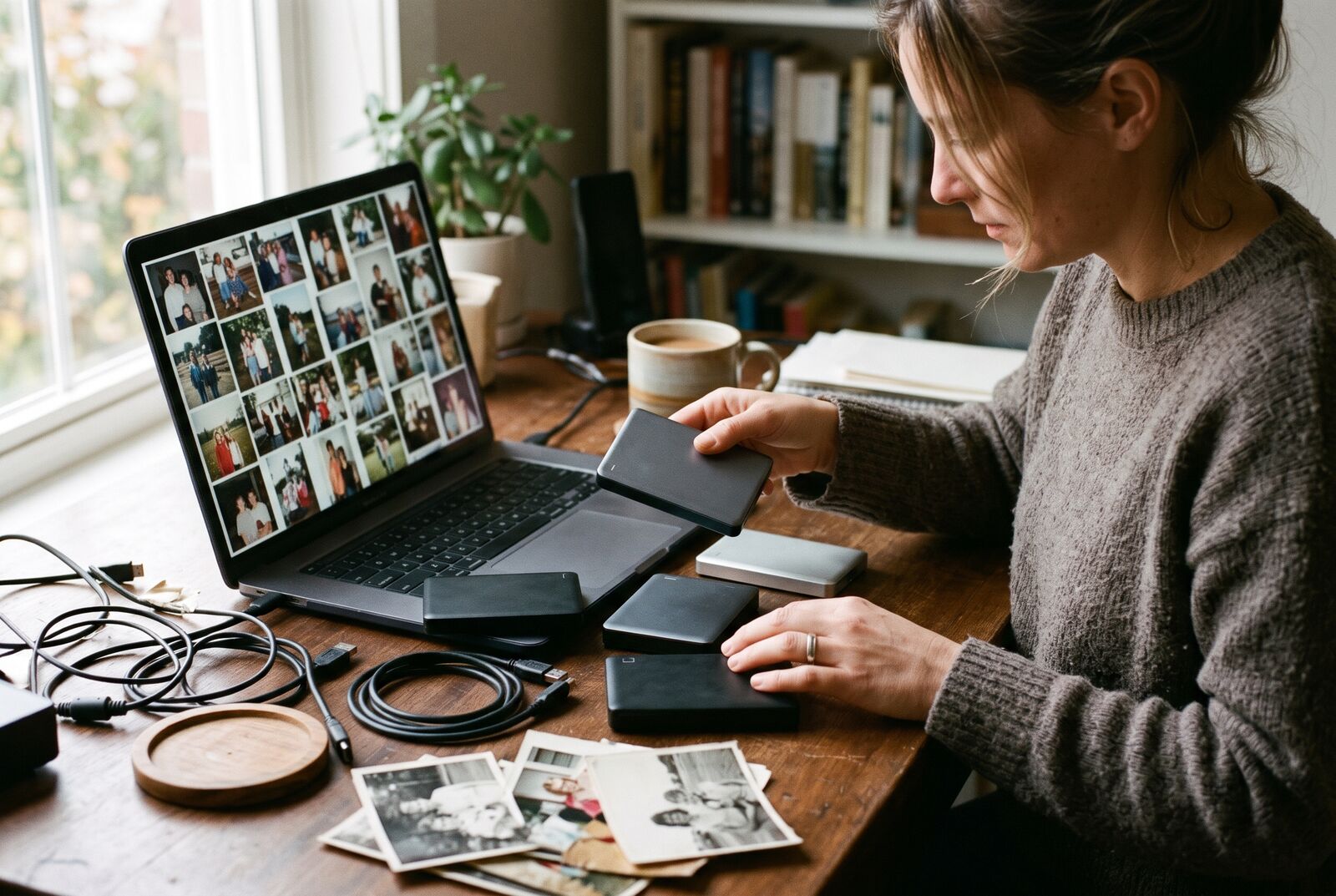
- An external hard drive avoids subscription costs, but needs a second independent copy stored separately and a regular routine for new photos.
- Self-hosted options such as Immich give full control over your data, but require ongoing administration and their own backup strategy.
For any cloud alternative, check current prices, storage limits, original-file handling, export options, and whether automatic phone backup is supported. If you want to import years of photos from Google Drive, OneDrive, or a Google Takeout archive and have them sorted by capture date and location, Fayloo's backup and import page explains how that works. The Android app backs up automatically; iPhone users currently upload through any browser.
How to export your photos with Google Takeout
- Go to takeout.google.com and sign in with the Google account that holds your photos.
- Deselect all products, then select Google Photos. Review which albums and collections are included.
- Choose your delivery method carefully: if your Google Drive is already full, do not export to Drive — the archive will consume quota from the same full pool. An emailed download link is the safer default.
- Choose your archive size. Large libraries split into multiple files; smaller archive sizes are easier to verify one at a time.
- Click "Create export." Large libraries can take many hours. Google emails you when the export is ready.
- Download every part and confirm each archive extracts without errors. Open files from different years, albums, and formats to check they look correct.
- Keep the JSON files alongside the photos. They may contain supplemental metadata such as descriptions and location data added within Google Photos. However, edited versions and album organization require separate verification — importing JSON files does not guarantee that edits or album structure will be reconstructed in another service.
A Takeout export is a one-time snapshot. Configure a continuing backup method for new photos in your destination service before you stop using Google Photos.
Leaving Google Photos safely
- Turn off Google Photos backup on all your devices before deleting anything from the cloud.
- To remove backed-up photos from Google's servers while keeping copies on your device, use the browser-based procedure documented at support.google.com — search for instructions on deleting your backup copy, as the steps change between versions. Avoid using the Google Photos app on your phone for bulk cloud deletion, as app-based deletion can remove local copies depending on your settings.
- Spot-check the new destination: open photos from multiple years, confirm long videos play, and verify that capture dates and locations have carried over.
- Keep the Takeout archive as a fallback until you are satisfied the migration is complete.
Frequently asked questions
Does Google delete my photos when storage is full?
Reaching the storage limit pauses new backups; it does not delete existing photos immediately. Google's policy states that content in accounts remaining over quota for two years can be subject to removal, with advance notices sent first.
How much free storage does Google Photos give?
Google Photos shares a free quota with Gmail and Google Drive. The size and terms can change — check your current allocation on your Google Account storage page when signed in.
Why is my storage still full after I deleted photos?
Several things can cause this. Gmail Trash and Drive Trash count toward your quota until emptied manually. Google Photos Trash does not count toward your Google Account storage quota, so emptying it will not recover space. Storage totals can take up to 48–72 hours to update after large deletions. Check that you are signed into the correct Google account. Also note that only eligible High quality or Express quality uploads made before June 1, 2021 are excluded from quota counting — not all uploads from before that date.
Can I keep Google Photos and use another service at the same time?
Yes. Running both in parallel while you evaluate is sensible. Many people permanently keep one service for search and sharing and another for archiving original files.
Will Google Takeout preserve my albums, dates, and locations?
Original files usually contain embedded metadata with capture date and location. Supplemental data added in Google Photos may appear in accompanying JSON files, but edited versions and album organization require separate verification — importing JSON files does not guarantee their reconstruction in another service.
When Google Photos storage is full, start by identifying what is using your space. Delete junk first — it costs nothing and sometimes solves everything. If most of your photos are worth keeping, choose between paying for more Google storage or moving to a service that fits your workflow better. Either way, do not delete anything from Google until you have confirmed a copy exists somewhere else.