What to Do When iPhone Storage Is Full of Photos
Storage · 9 November 2026 · 9 min read
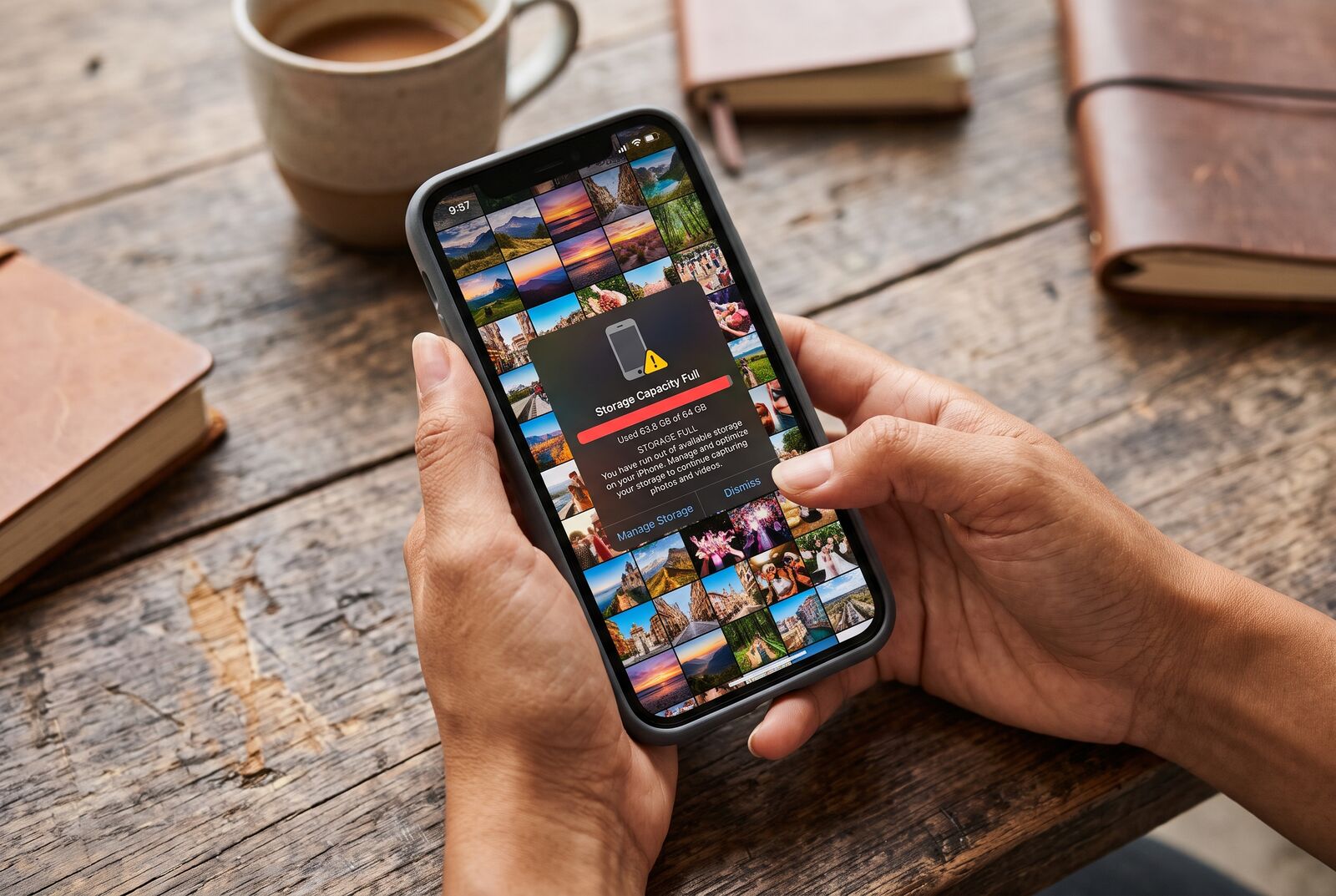
Your iPhone says storage is full, you can't take another photo, and you have no idea which pictures to delete. The good news: you don't have to choose between your memories and a working phone. Here's how to free up space right now when your iPhone storage is full of photos, then decide what belongs on your device and what doesn't.
Start Here: Check What's Using Space
Before making any decisions, check what's using space. Go to Settings > General > iPhone Storage and look at the largest categories. Note how much Photos is using. Also check Settings > your name > iCloud to see your cloud usage.
Understanding the difference matters: buying cloud storage does not increase your iPhone's physical capacity. It helps reduce local photo storage only when iCloud Photos syncing and optimization are enabled, uploads have completed, and the phone has had time to manage its library.
Critical warning: With iCloud Photos enabled, deleting a photo in the Photos app deletes it from iCloud and all your other devices. Do not delete photos you want to keep unless you have created and verified an independent backup first.
Free Up Space in the Next Few Minutes
Try these immediate actions:
Offload unused apps. Go to Settings > General > iPhone Storage. Review apps you rarely open and check the size shown next to each app. Tap Offload App for the largest ones. This removes the app itself but keeps its data, so you can reinstall later without losing anything.
Review and delete screenshots. Open Photos and look for Screenshots in collections such as Media Types or Utilities (location and names vary by iOS version). Review them first, as some may contain receipts, tickets, or records you need. Delete only what you're certain is disposable.
Check for duplicates. If your iOS version includes a Duplicates collection, open it and use the Merge action to combine identical photos. This keeps the best quality version and removes copies.
Empty Recently Deleted, carefully. Photos you delete stay in Recently Deleted for up to 30 days, still using space. Open Photos, find Recently Deleted in your collections, and review its contents. Recover anything you need, then permanently delete only items you're certain you no longer want. Remember: with iCloud Photos this deletion syncs across all your devices.
Clear Messages media. Go to Settings > General > iPhone Storage > Messages and review large attachments individually. Old group chat media accumulates quickly.
Stop Your iPhone Filling Up Again
Once you've cleared some breathing room, change a few settings to prevent the problem from returning.
Turn on Optimize iPhone Storage
This is Apple's built-in solution, but it requires setup and space. First, go to Settings > your name > iCloud > Photos. If iCloud Photos is off and you want to use this feature, turn it on — but understand that this begins syncing your entire library to iCloud, which takes time and uses your iCloud storage allowance.
Once iCloud Photos is syncing, tap Optimize iPhone Storage. Your iPhone will manage smaller local versions of your photos as space is needed, while storing full-resolution copies in iCloud. Originals may require an internet connection to view fully, edit, or export.
This is not immediate. Check the sync status in Photos and confirm that uploads have completed. Insufficient iCloud storage can stop syncing entirely. Check Apple's current iCloud storage plans before upgrading.
Change Camera Settings for Future Photos
Go to Settings > Camera > Formats and choose High Efficiency. This switches from JPEG to HEIC, which typically uses less space than JPEG. Note that HEIC compatibility can be an issue when sharing with older devices or software.
To turn off Live Photos by default, open Camera and tap the Live Photos button. To preserve this choice, go to Settings > Camera > Preserve Settings > Live Photo (exact labels vary by iOS version). Remember that changing camera settings affects only future captures and does not shrink existing files.
If you don't need maximum video quality, record in 1080p instead of 4K. Go to Settings > Camera > Record Video and review the size estimates shown for each option.
Decide What to Do With Old Photos
Now that the immediate crisis is over, figure out what actually belongs on your phone and what doesn't.
Review What's Actually There
Open Photos and tap the Years tab. Scroll through and tap any year to see months. This view makes it obvious where the bulk of your storage is going.
Review sections like Videos, Screen Recordings, Screenshots, and bursts where available. The search bar works too: try "beach," "2019," or anything else that might reveal a block you no longer need.
Two Safe Routes Forward
Choose one approach based on whether you want to continue using iCloud Photos:
Keep using iCloud Photos: Finish syncing, enable Optimize iPhone Storage, and let the phone manage local copies automatically. Do not manually delete photos you want to keep. To check your original cloud library's storage usage when optimization is enabled, go to Settings > your name > iCloud > Manage Account Storage > Photos. The local Photos size in iPhone Storage can substantially understate what your full library requires.
Archive elsewhere and remove from iPhone: Export or upload selected photos to another location, verify the destination thoroughly, and ideally keep another independent copy. Only then delete the selected items from Photos, understanding that with iCloud Photos this deletion will sync to the cloud and your other devices.
How to Back Up Before Deleting
To export to a computer, plug in your iPhone with the device unlocked. Open Photos on Mac or Microsoft Photos on Windows, and trust the computer if prompted. Note that if you have Optimize iPhone Storage enabled, not all originals may be on the phone — you may need to download them from iCloud on the computer first.
Select the photos you want to save and import them. Verify file counts, open sample photos, and play several videos before deleting anything from your iPhone. For detailed instructions, check Apple's official support or Microsoft's support for importing photos.
You can also upload to another service. Google Photos, Microsoft OneDrive, and Dropbox all accept photo uploads. Services like Fayloo keep your photos in original quality and sort them by date and place automatically — uploads work through any browser, with an Android app available and an iPhone app coming soon.
When You Need More Storage
If your Photos library is larger than the free iCloud storage, you'll need to decide whether to pay for more iCloud storage or use another service.
How Much Storage Do You Actually Need?
Photo sizes vary substantially, and an optimized local library can be much smaller than the originals. To assess your needs, check your original cloud library size in Settings > your name > iCloud > Manage Account Storage > Photos. Account for other usage such as backups and documents, and leave room for growth. Check current official storage plans and prices before deciding, as they change.
What to Look for in Cloud Storage
Not all cloud storage works the same way for photos. Consider these factors:
- Original quality: Some services compress your photos. If you care about printing or zooming in, check whether the service keeps your files exactly as shot.
- Easy import: Can you bring in existing archives, Google Takeout exports, or photos from old drives?
- Sharing: Do you need to share albums with family, or collect photos from friends after trips and events?
- Face grouping: If you have thousands of photos, automatic face recognition makes it easy to find everyone.
- Works on your devices: Make sure it works on iPhone, any Android devices in your household, and computers.
iCloud vs. Other Options
iCloud Photos and iCloud Backup are separate functions. iCloud+ provides storage for both, but photos synced through iCloud Photos are not also included in your device's daily iCloud backup. iCloud Photos works automatically within the Apple ecosystem, and iCloud Backup covers your device settings, app data, and other content.
Apple offers Shared Albums and iCloud Shared Photo Library for collaboration. The service also provides browser access and iCloud for Windows. Consider whether these features, along with the automatic device backup, meet your needs — or whether differences in device mix, collaboration requirements, and original-quality handling across platforms matter for your situation.
Google Photos works across every platform and offers strong photo search. Face grouping availability varies by region and account. Upload quality settings affect compression and storage use — check current options when you sign up.
Microsoft OneDrive inclusion and storage depend on your subscription. For readers whose existing Microsoft 365 plan already includes storage, OneDrive integrates with Windows and keeps original quality.
Fayloo is built specifically for photos: original quality storage, automatic sorting by date and place, and shared albums where friends add their own photos directly. Uploads work through any browser; the Android app is available now and the iPhone app is coming soon.
Check current prices and plan details on each service's website before deciding.
Moving Forward: A System That Works
Once you've cleared space and chosen a backup system, simple habits keep the problem from coming back.
Verify your backup or sync status regularly. Review recent unwanted captures, large videos, screenshots, and screen recordings. Check available storage periodically.
Always verify your backup before deleting photos. When you're trying to free up space quickly to take a photo, it's easy to forget this step.
Use albums for things you show people often — your kids, your pets, your best travel shots. Albums help retrieval but don't free up space on their own.
Frequently Asked Questions
Will I lose photos if I turn on Optimize iPhone Storage?
No. The full-resolution version stays in iCloud. Your phone manages smaller local versions as space is needed. Originals download as needed when you view, edit, or export photos and may require an internet connection.
What happens to my photos if I stop paying for iCloud?
A downgrade takes effect after your current billing period. Exceeding your new storage allowance can stop iCloud Photos from syncing or updating and prevent backups from completing. Download and verify all your originals before downgrading. See Apple's support site for current guidance on downgrading storage plans.
Can I use iCloud and another service at the same time?
Yes. Using a second service does not require disabling iCloud Photos. You can keep iCloud Photos enabled and also upload to another service for a second copy. If you do choose to disable iCloud Photos, be sure to check where your originals are stored and follow Apple's download or removal prompts carefully.
How do I get photos off my phone without losing them?
Three safe ways: plug into a computer and import them using Photos on Mac or Microsoft Photos on Windows, upload to a cloud service, or AirDrop to another Apple device. Always verify the backup worked — check file counts, open sample photos, and play videos — before deleting from your phone.
Do I need to pay for cloud storage if I have a computer?
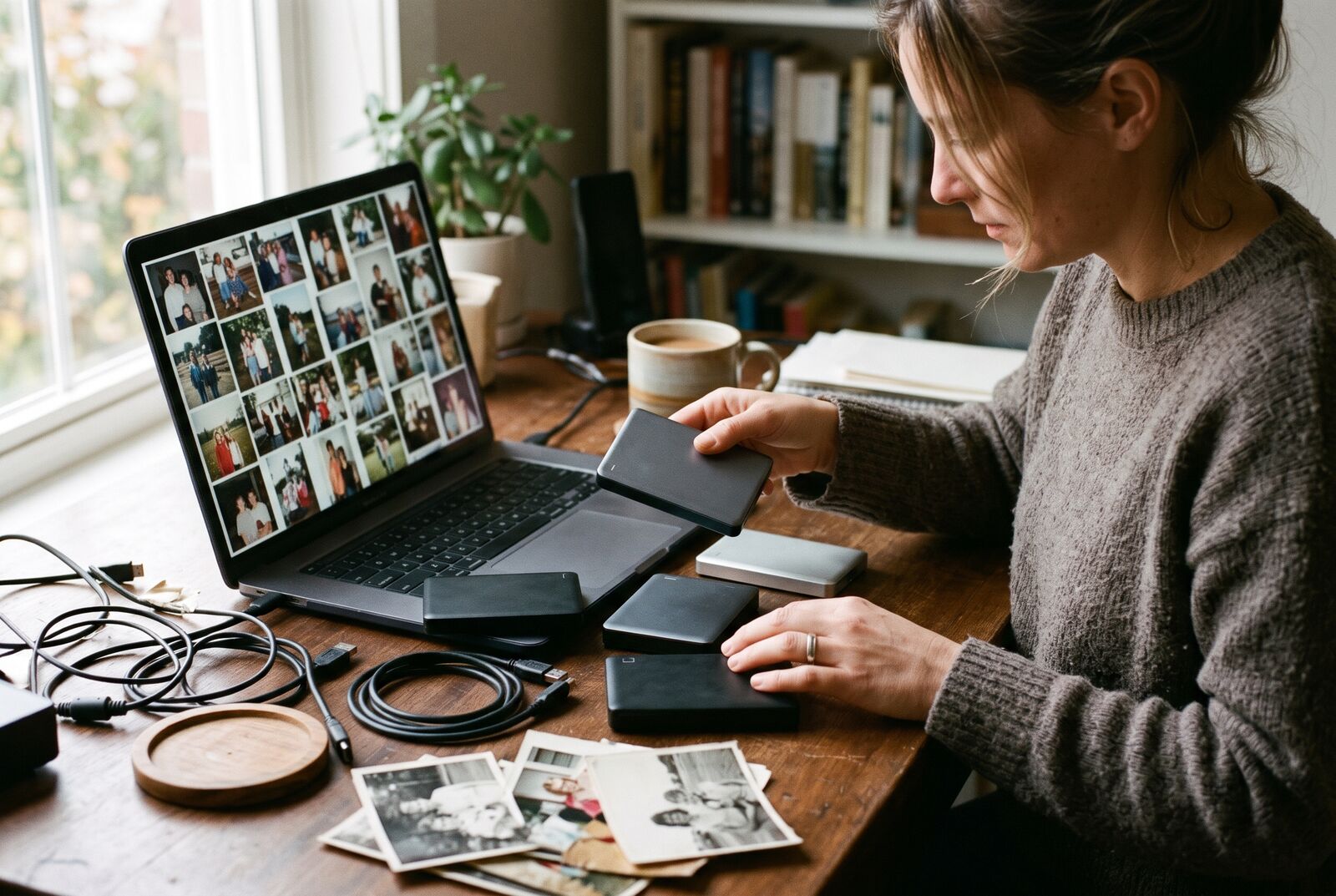
Not necessarily. Importing to your computer and storing photos on an external drive works and costs nothing beyond the drive. The trade-off: you have to remember to do it regularly, and you can't access those photos from your phone once they're removed.
The moment your iPhone storage is full of photos doesn't have to be a crisis. Quick selective cleanup buys time, settings changes prevent the next emergency, and a real backup system means you keep your memories without keeping them all on your device. Choose optimization for an iCloud library, or verify an independent archive before deleting local photos.